Telesto: Inventory Management
Keg management system for wineries and breweries
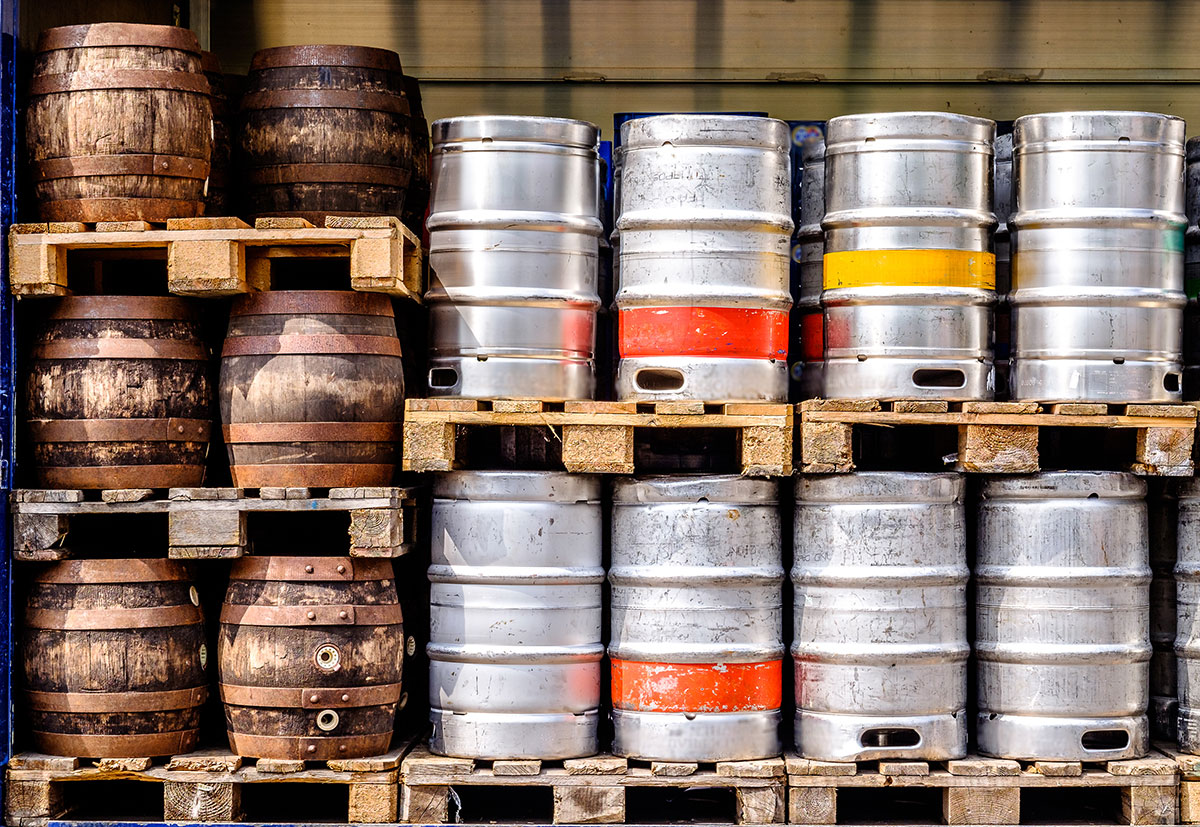
Track every keg across your entire operation with Telesto's keg management system, built specifically for breweries and wineries that need full visibility into their keg inventory.
Fully integrated into your inventory system, it keeps stock data accurate in real time, helps you optimize keg levels across locations, and prevents costly overstock or stock-out situations.
Better
Management
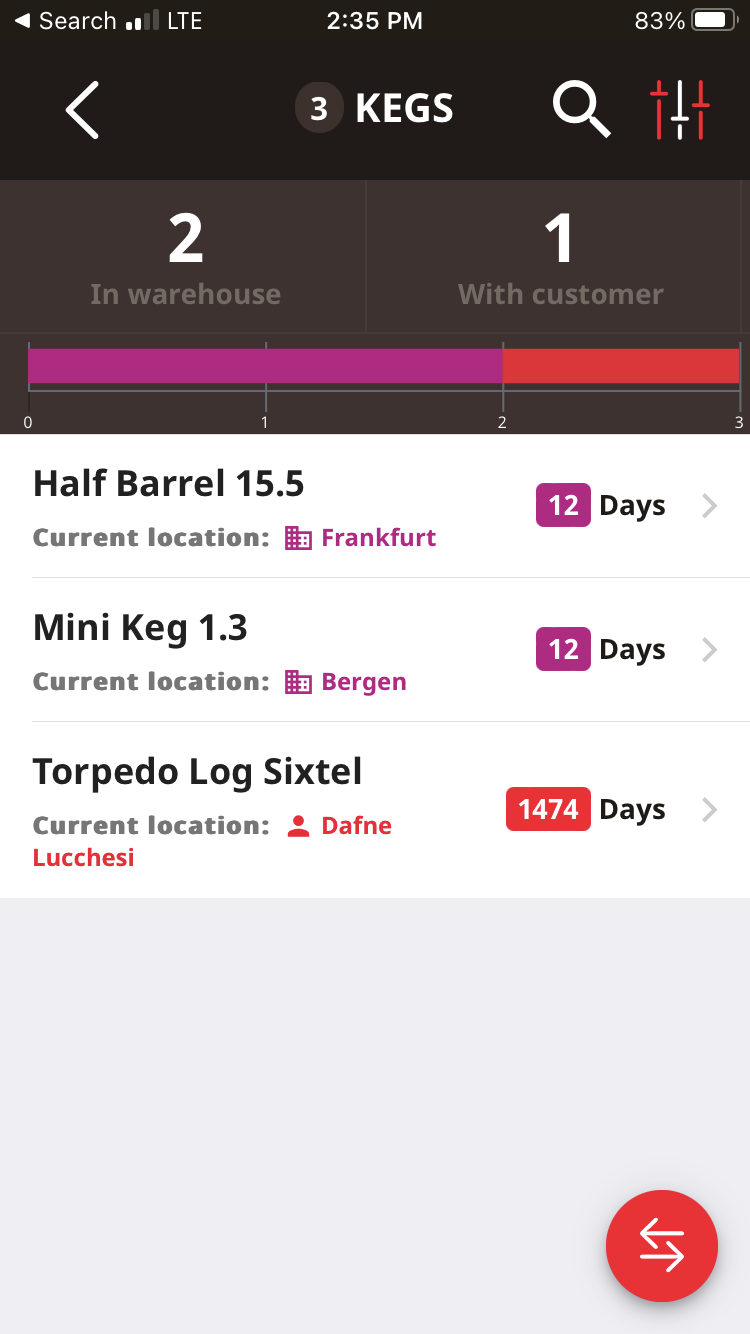
Easily track where each keg is, who has it, and when it's expected back.
Improve
Efficiency
Monitor how long a keg stays at each location to streamline delivery routes and refills.
Core Features
Shopify integration
Records keg movements
Scan keg barcodes
Multi-location support
Manage orders and suppliers
Multi-user, multi-platform access
Frequently Asked Questions
Follow these steps to activate keg tracking:
Once enabled, a Keg Tracker button will appear on your dashboard. When adding or editing a product, mark it as a keg using the new checkbox. If a product isn't marked as a keg, it won't appear in the keg module or allow keg-specific transactions.
- Go to Settings in Telesto and click on the second tab.
- Enable the Keg tracker checkbox and save your changes.
Once enabled, a Keg Tracker button will appear on your dashboard. When adding or editing a product, mark it as a keg using the new checkbox. If a product isn't marked as a keg, it won't appear in the keg module or allow keg-specific transactions.
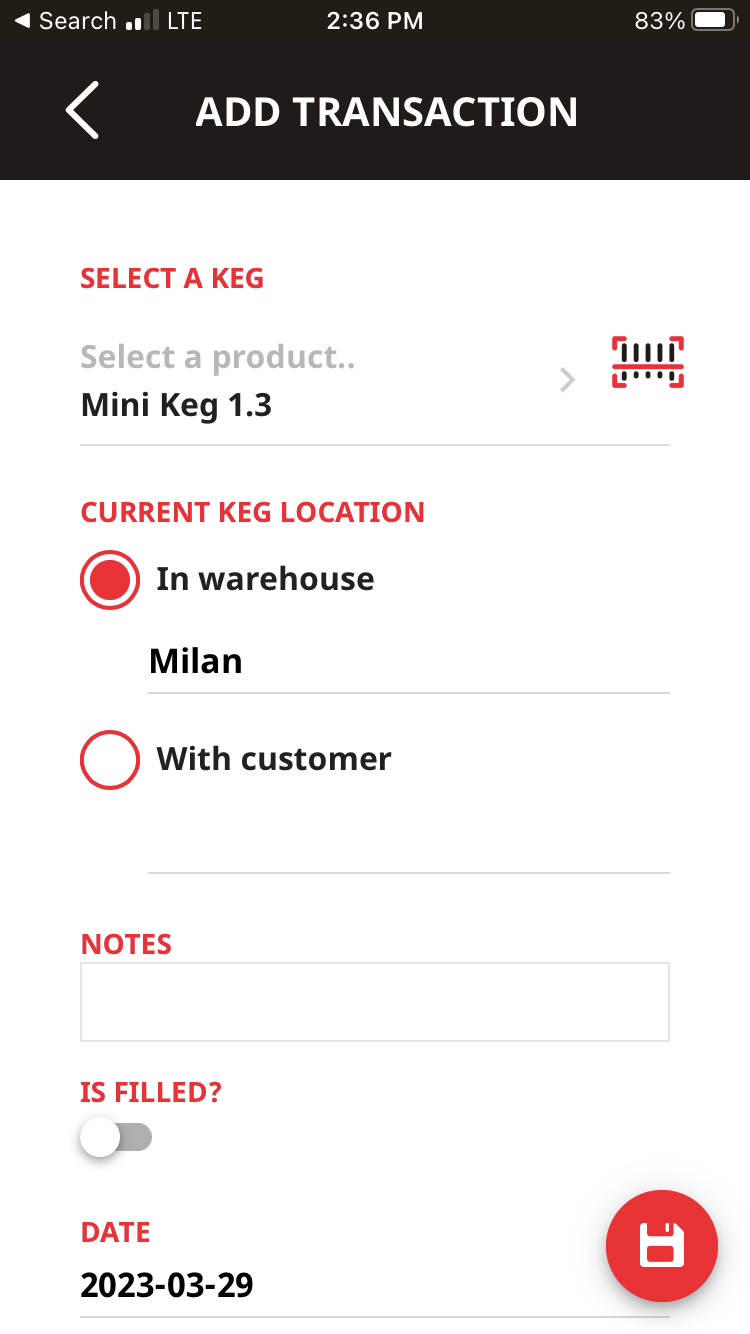
In the Keg module, tap the red button at the bottom right (with the double arrow icon). You'll see a form where you can assign a keg to a warehouse or a customer.
When you add a transaction and set a customer (from the customer module), Telesto links that keg to the customer and starts tracking how long they've had it.
When you add a transaction and set a customer (from the customer module), Telesto links that keg to the customer and starts tracking how long they've had it.
- Open the Keg Tracker module in Telesto.
- Each row shows how long a keg has stayed at its current location.
- Tap a keg to view its full movement history and how long it spent with each customer.
If keg tracking is enabled:
- Go to the Products module.
- Select the product you want to edit or create a new one.
- You'll see options to mark it as a keg and fields for capacity and dimensions.
- Fill them out and save your changes.
To see kegs at a specific location or assigned to a customer:
- Open the Keg Tracker module.
- Tap the filter icon at the top right.
- Select a location or customer as a filter.
- Tap Filter to view the results.